Let’s be honest.
You bought your new phone for the camera. Or maybe for the battery life.
You saw the ads saying “AI Powered,” but you ignored them. You thought, “That’s just marketing fluff.”
So, you went back to typing out long emails. You went back to cropping photobombers out of your selfies manually. You went back to struggling with language barriers on your holiday.
Stop.
The phone in your pocket right now (whether it’s the iPhone 17, Samsung S26, or Pixel 10) has a dedicated NPU (Neural Processing Unit). It is a supercomputer designed to do things for you.
You paid for these features. It is time you started using them.
Here are the 5 Mind-Blowing AI Features hidden in your settings menu that will change how you use your phone forever.
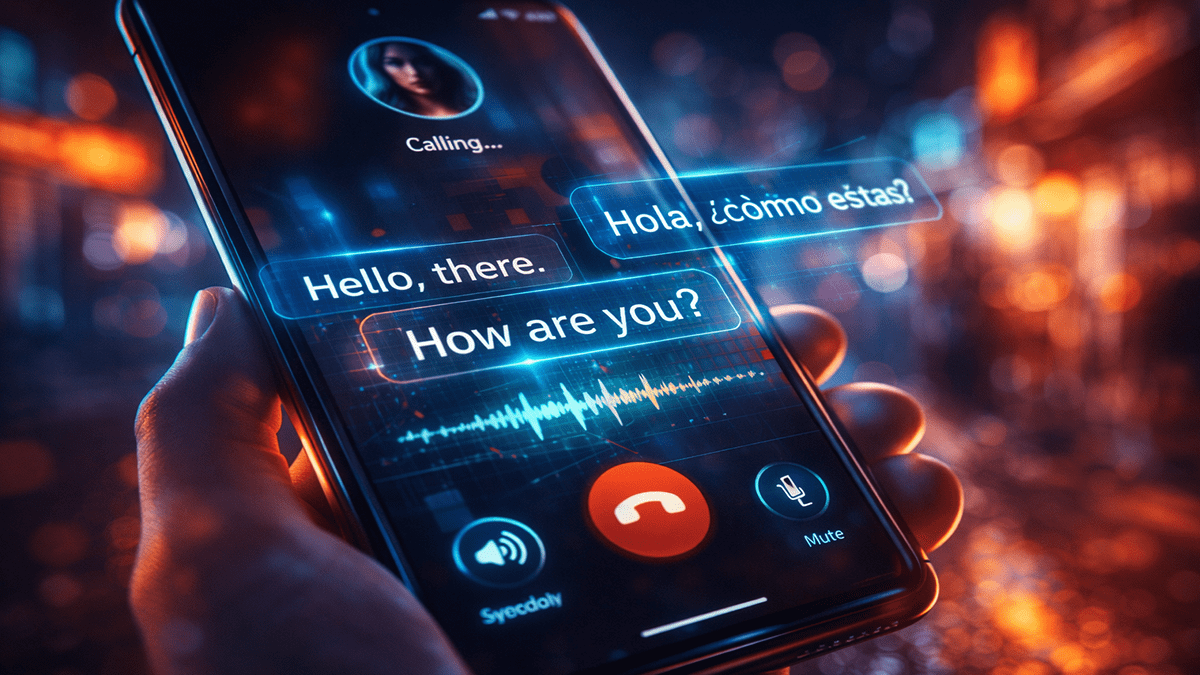
The “Babel Fish” (Live Call Translation)
The Problem:
You are booking a hotel in Japan, or talking to a relative who speaks only Telugu/Hindi while you speak English. The language barrier is awkward.
The Hidden AI:
Live Translate.
This isn’t Google Translate where you type and wait. This happens during the phone call.
- How it works: You speak in English. The person on the other end hears a robotic voice speak in Japanese (or Hindi). They reply in Japanese. You hear it in English. Instant. Seamless.
How to use it:
- Samsung: Phone App > Three Dots > Settings > Live Translate > Toggle ON.
- iPhone: Settings > Apps > Phone > Live Voicemail / Translate > Enable Language.
Real World Use:
Ordering food in a foreign country or negotiating with a local vendor without knowing a word of their language.
The “Magic Eraser” on Steroids (Generative Edit)
The Problem:
You took the perfect photo at the Taj Mahal. The lighting is great. You look great.
But there is a random uncle scratching his head in the background. Or a trash can ruining the vibe.
The Hidden AI:
Generative Fill.
In 2026, phones don’t just “blur” the background. They rebuild reality.
You can circle the uncle, hit “Erase,” and the AI doesn’t just leave a smudge. It analyzes the marble texture of the Taj Mahal and fills in the empty space perfectly. You can even move people around in the frame.
How to use it:
- Android (Google/Samsung): Open Photo > Edit > Tap the sparkly AI icon > Circle the object > Long press to move or hit Erase.
- iPhone: Open Photos > Edit > Clean Up tool.
Real World Use:
Making every vacation photo look like you had the entire place to yourself.
The “TL;DR” Machine (Webpage Summaries)
The Problem:
You click on a news article (maybe even this one!). It is 2,000 words long. You don’t have time to read the whole thing. You just want the facts.
The Hidden AI:
Browsing Assist.
Your browser now has a built-in reader that reads the article for you and gives you bullet points.
How to use it:
- Safari (iPhone): Tap the “Page Menu” (the little icon next to URL) > Show Intelligent Summary.
- Chrome/Samsung Internet: Tap the “AI Star” icon > Summarize.
Real World Use:
Catching up on the news or reading long contracts/terms of service in 30 seconds.
“Circle to Search” (The End of Typing)
The Problem:
You are watching a YouTube video or scrolling Instagram. You see a cool pair of sneakers or a nice lamp.
You want to buy it.
- Old Way: Close app. Open Google. Type “Black sneakers with white stripe nike…” Scroll through results. Give up.
The Hidden AI:
Screen Context Search.
You don’t need to leave the app.
- How it works: Long press the Home Button (or Navigation Bar). Circle the sneakers on your screen with your finger. Google/Apple instantly finds the exact product, price, and buy link.
Real World Use:
Identifying landmarks in travel vlogs (“Where is that cafe?”) or buying fashion items you see on influencers without asking “Link please?” in the comments.
The “Audio Notes” Transcriber
The Problem:
You are in a meeting or a lecture. You are frantically taking notes. You miss half of what was said.
Or you have a brilliant idea while driving and record a Voice Memo, but you never listen to it again because it’s too long.
The Hidden AI:
Auto-Transcribe & Summarize.
Your Voice Recorder app is now a secretary.
Record an hour-long meeting. The AI will:
- Transcribe every word into text (identifying different speakers).
- Create a “Summary” with bullet points.
- Create a “To-Do List” based on what was discussed.
How to use it:
- iPhone: Voice Memos > Tap the recording > Tap the “Quote” icon.
- Pixel/Samsung: Recorder App > Transcript View.
Real World Use:
Students recording lectures or professionals recording minutes of the meeting without typing a single word.
Frequently Asked Questions (FAQs)
Q: Does using AI drain my battery?
A: Yes, slightly. AI tasks use the NPU (Neural Processing Unit). While efficient, heavy use (like editing 50 photos) will consume power. However, standard background features like “Optimized Charging” use AI to save battery health long-term.
Q: Is my data safe?
A: This is the big debate.
- On-Device AI: Features like Live Translate often run on the phone chip (Snapdragon 8 Gen 4 / A19 Pro). This is safe; data doesn’t leave your phone.
- Cloud AI: Complex tasks (like Generative Photo Editing) often upload data to the cloud to process. Check your settings to see which is which.
Q: Do I need the latest phone for this?
A: Mostly, yes. These features require powerful chips (NPU). Phones from 2023 or older might get “Lite” versions, but the real-time magic is exclusive to 2025/2026 flagships.
Don’t Be a “Dumb” User
Technology moves fast.
Ten years ago, a “Smart Phone” meant it had email.
Today, a “Smart Phone” means it has a brain.
You have spent the money. The hardware is in your hand.
Don’t let it sit idle.
Open your settings. Turn on the AI. And let the machine do the heavy lifting so you can get back to living your life.










One Comment